There's no single official ChatGPT add-on for Google Sheets. You pick one of four routes: a Marketplace add-on, your own Apps Script function, Google's built-in Gemini, or plain copy-paste into ChatGPT. Add-ons are fastest to start, and Apps Script gives you the most control.
The Four Routes at a Glance
The four routes differ mainly in who holds your data and who sends the bill. Choose by how often you'll run AI on cells, not by which sounds most advanced.
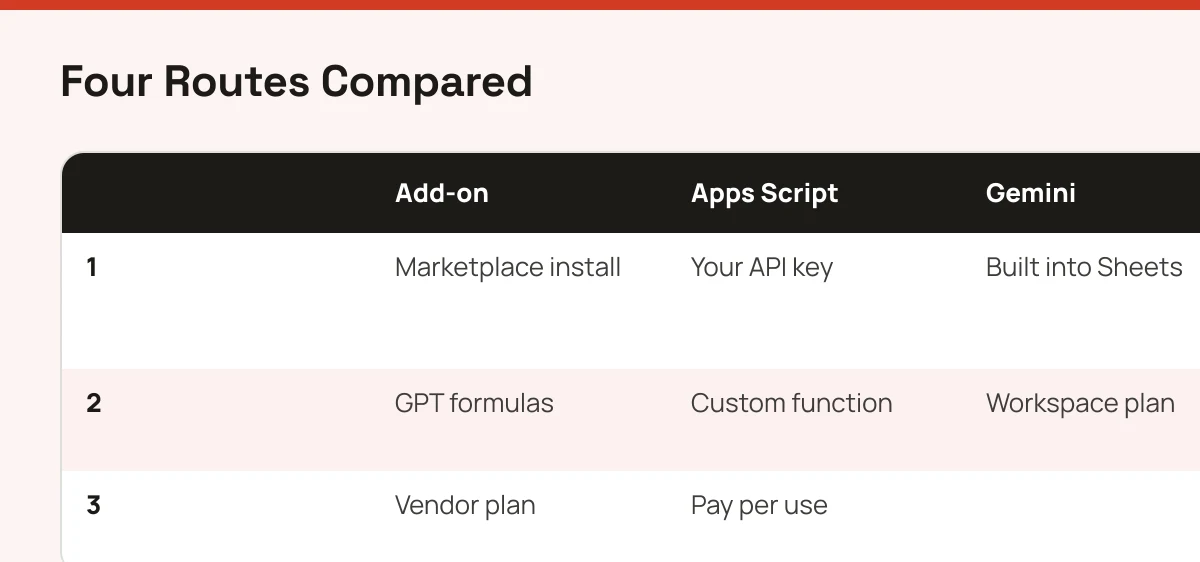
| Route | Setup | Cost model | Best for |
|---|---|---|---|
| Marketplace add-on | A few minutes | Vendor plan, often plus your own API key, check each add-on's pricing page | Fill-down AI formulas on many rows |
| Apps Script function | 15 to 30 minutes | OpenAI API usage, billed separately from ChatGPT | People who won't hand cells to a third party |
| Gemini in Sheets | None if enabled | Part of a Google Workspace plan, check Google's official plan page for your edition | Staying inside Google's ecosystem |
| Copy-paste to ChatGPT | None | Free tier works | One-off cleanup and formula help |
My rule: one-off questions get copy-paste. Repeated row-by-row work gets an add-on or a script. Don't pay for either until copy-paste has failed you.
Installing a ChatGPT Add-on From the Marketplace
A Marketplace add-on installs from the Extensions menu in any sheet and adds AI functions you call like normal formulas. GPT for Sheets and Docs is the one this site lists.
- In your sheet, open Extensions, then Add-ons, then Get add-ons.
- Search for the add-on name and open its listing.
- Select Install and approve the Google permissions it asks for.
- Open Extensions, find the add-on and follow its setup, which usually asks for an API key or an account.
- Test a single cell before filling down a column.
Read the permission screen. An add-on that wants access to all your Drive files for a job on one sheet deserves a second look.
Building Your Own Function With Apps Script
Apps Script lets you write a custom function that sends a cell's text to the OpenAI API and returns the reply. It takes longer, but no third party touches your data beyond OpenAI.
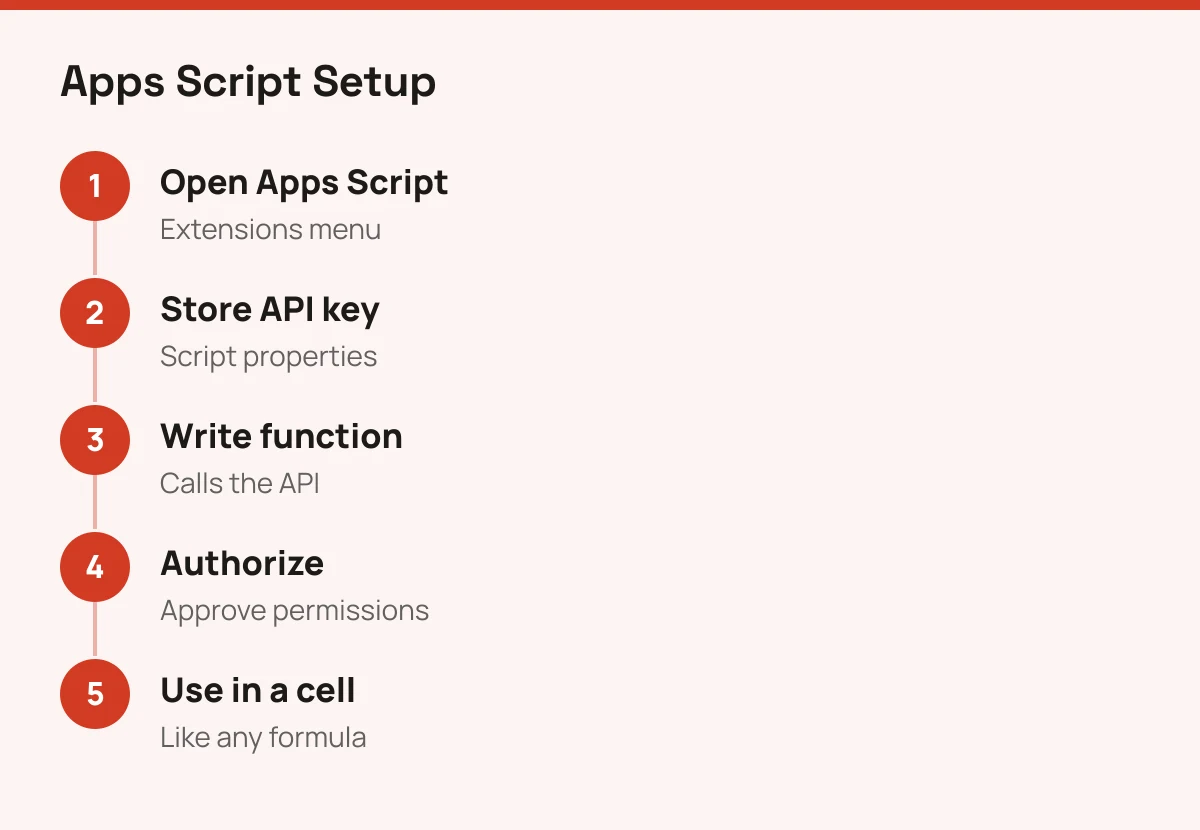
- Create an API key in your OpenAI account. API billing is separate from a ChatGPT subscription, so check OpenAI's official API pricing page for current rates.
- In the sheet, open Extensions, then Apps Script.
- Save the key under Project Settings, Script Properties, never in the code.
- Write a function that uses UrlFetchApp to call the API, passing the cell text as the prompt. Check OpenAI's API documentation for the current endpoint and model names.
- Save, run once, and approve the authorization prompt.
- Call it in a cell like
=ASKGPT(A2), with whatever name you chose.
Add a short pause or caching step if you'll run it on hundreds of rows. Without one, you'll hit rate limits fast.
Where Each Route Goes Wrong
Every route fails the same way: the formula recalculates and you pay again. Sheets re-runs custom functions when a sheet reloads or inputs change, so a 500-row column can quietly cost 500 calls more than once.
Fix it by pasting results as values once they look right. Then keep sensitive data out of prompts. Customer emails, salaries and health data shouldn't leave the sheet unless your company's policy says so.
Gemini avoids the third-party question but ties you to Google's plan terms. Copy-paste is the safest and slowest. And if you only want formula help, ask ChatGPT to write the formula, paste it in, and skip the integration entirely.
Pick by Job, Then Explore Further
For one-off work, use copy-paste today. For recurring AI columns, try an add-on with a free tier first, then move to Apps Script if privacy or cost matters. For a wider shortlist across spreadsheet tools, see our comparison of AI tools for Excel and Sheets, or browse ChatGPT alternatives if the model itself isn't the right fit.