Text-to-video tools get most of the attention, but a quieter category is proving more useful for everyday production work: video-to-video AI. Instead of generating a clip from a written prompt, these tools start from footage you already have and change only part of it. The movement, the timing and the camera work come from a real take. The model handles the visual changes.
If you are comparing AI video tools for marketing, social content or client work, it helps to understand the three jobs this category now does well, what each one is good for, and where the limits still are.
Why video-to-video is worth a look
Prompt-only generators are impressive, but they struggle with the things viewers notice first. A dancer’s rhythm, the way someone turns their head, the moment a camera pans to follow an action: these are hard to describe in words and even harder to get right twice in a row.
Video-to-video tools sidestep that problem. The performance is captured once, on camera, and the model is asked to re-dress it rather than invent it. That makes results more predictable and makes it far easier to produce several versions of the same idea. For a small team, one good phone clip can become the base for a whole set of variations.
The three core modes
Most tools in this space group their features into three modes. The names vary slightly from product to product, but the ideas are the same.
1. Motion transfer
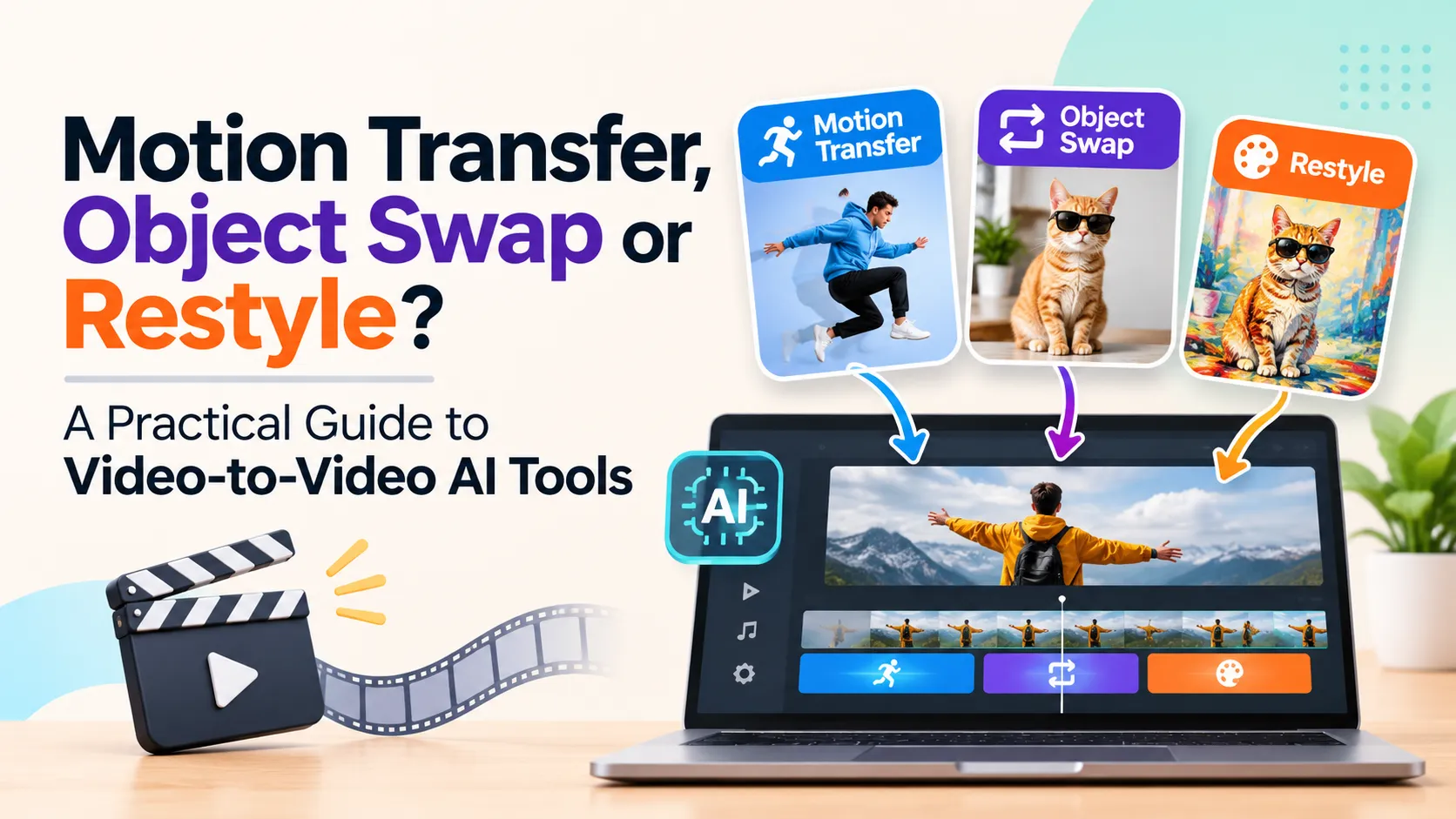
Motion transfer treats the source clip as a performance track. The choreography, camera path and cuts stay locked, while the cast, wardrobe, set and colour are rebuilt from reference images.
Best for: music videos, dance content, stunts and any take that would be expensive or impossible to reshoot.
What to watch: because the whole scene is rebuilt, small details such as hands, jewellery and background text can change between frames. Review those areas closely.
2. Object swap
Object swap changes one named element and leaves everything else as filmed. That element might be a person, an outfit, a product, a vehicle or a prop.
Best for: ad variations, product colourways, regional versions of an approved campaign and quick revisions where only one thing needs to change.
What to watch: logos and fine product detail. If a brand mark matters, check it frame by frame before publishing.
3. Restyle
Restyle redraws the entire clip in a new visual style, such as anime, stop-motion, stylised 3D or a retro game look, while keeping the motion and composition of the original.
Best for: repurposing older footage, seasonal themes, testing a creative direction and making ordinary phone video look more polished.
What to watch: the stronger the style, the more the original identity of people in the shot can drift. Character reference images help.
A quick comparison
| Mode | What changes | What stays | Typical use |
| Motion transfer | Cast, location, overall look | Motion, camera, timing | Music videos, dance, stunts |
| Object swap | Only the element you name | The rest of the shot | Ads, product variants, revisions |
| Restyle | The whole visual style | Motion and composition | Repurposing, seasonal content |
One tool that covers all three
Higgsfield’s Genjutsu model is a good example of a single tool that offers all three modes. It takes a source clip of 4 to 30 seconds. Motion transfer and object swap accept between one and eight reference images, restyle comes with 20 presets, and output can be rendered at 480p, 720p or 1080p. A lighter, lower-cost version handles shorter clips of up to 15 seconds and keeps the original audio, which makes it handy for drafts and short social posts.
It is also no longer limited to the developer’s own app. Multi-model platforms now include it next to their other generators, so you can use Higgsfield Genjutsu for motion transfer and object swap in the same workspace you already use for text-to-video or image-to-video, and compare its output with other models before deciding which one suits a project.
How to choose the right mode
A simple way to decide:
- Do you want to keep the people and change the world around them? Use motion transfer.
- Do you want to keep almost everything and change one thing? Use object swap.
- Do you want the same video in a completely different look? Use restyle.
If you are not sure, start with object swap on a short section of the clip. It is the most conservative edit and the easiest to judge.
Tips for better results
- Use a clean source clip. Good lighting, steady framing and clear motion give the model more to keep. Dark or shaky footage tends to flicker.
- Prepare consistent references. Shoot or choose reference images from angles similar to the source. A side-on reference for a front-facing subject rarely works well.
- Keep the prompt short. Most of these tools treat the prompt as optional. A single clear sentence, such as “replace the jacket with the one in my reference and keep everything else”, usually beats a long description.
- Draft low, finish high. Generate at 480p to check the idea, then render the version you keep at 720p or 1080p.
- Check costs before you generate. Credit-based tools usually show the price for a given clip length and resolution. Shorter drafts save money.
Limits you should plan around
Video-to-video AI is useful, but it is not magic.
- Clip length is capped. Many tools stop at around 30 seconds per generation, so longer edits have to be split and stitched back together.
- Audio may not survive. Some modes return silent video, which means adding sound back in an editor.
- Fine detail still drifts. Hands, small text and fast motion remain the most common problem areas.
- Rights matter. Swapping a person or a face is now technically easy. Using footage or likenesses you do not have permission for is still a legal and ethical problem.
The bottom line
For most creators and marketing teams, the practical value of AI video is not in generating a film from a sentence. It is in taking one good take and turning it into many usable versions quickly. Motion transfer, object swap and restyle cover most of those needs between them.
If you are building a shortlist of AI video tools, test them on the same clip with the same references. The differences in identity, hands and product detail will tell you more than any feature list.