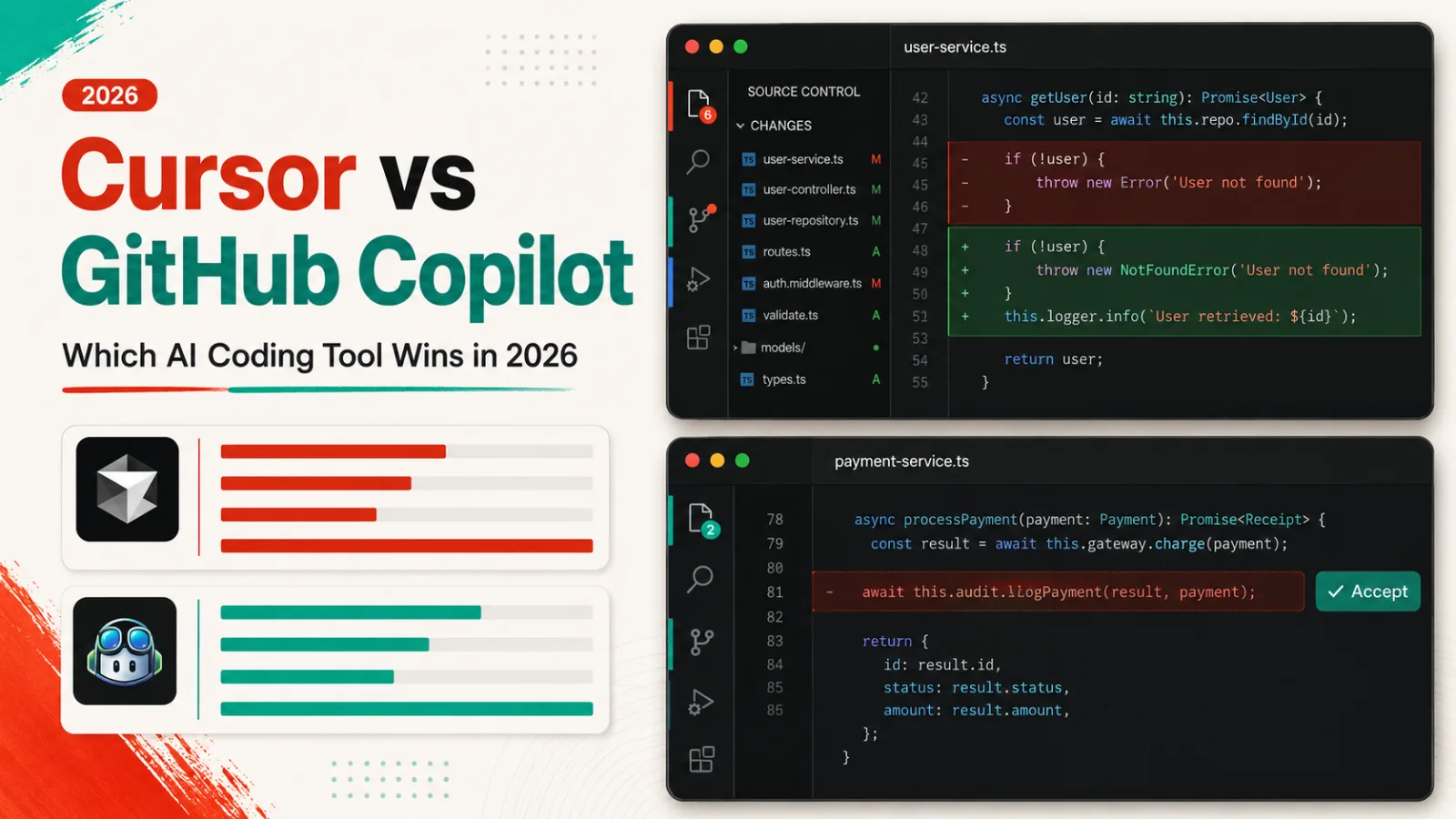
Cursor and GitHub Copilot are two of the most widely used AI coding tools, but they take different shapes. Cursor is a standalone, AI-first code editor (a fork of Visual Studio Code) built around chat, autocomplete, and autonomous agents. GitHub Copilot is an extension that adds AI completions, chat, and agent features to editors you may already run, such as VS Code, Visual Studio, JetBrains IDEs, and others. This comparison looks at what each does well, where each falls short, and how to choose.
The verdict in one line
Choose Cursor if you want a dedicated, agent-heavy editor built around deep codebase context, and choose GitHub Copilot if you want capable AI assistance that lives inside the editors and GitHub workflow you already use. Our editorial ratings put them close: Cursor at 4.7 out of 5 and GitHub Copilot at 4.6 out of 5.
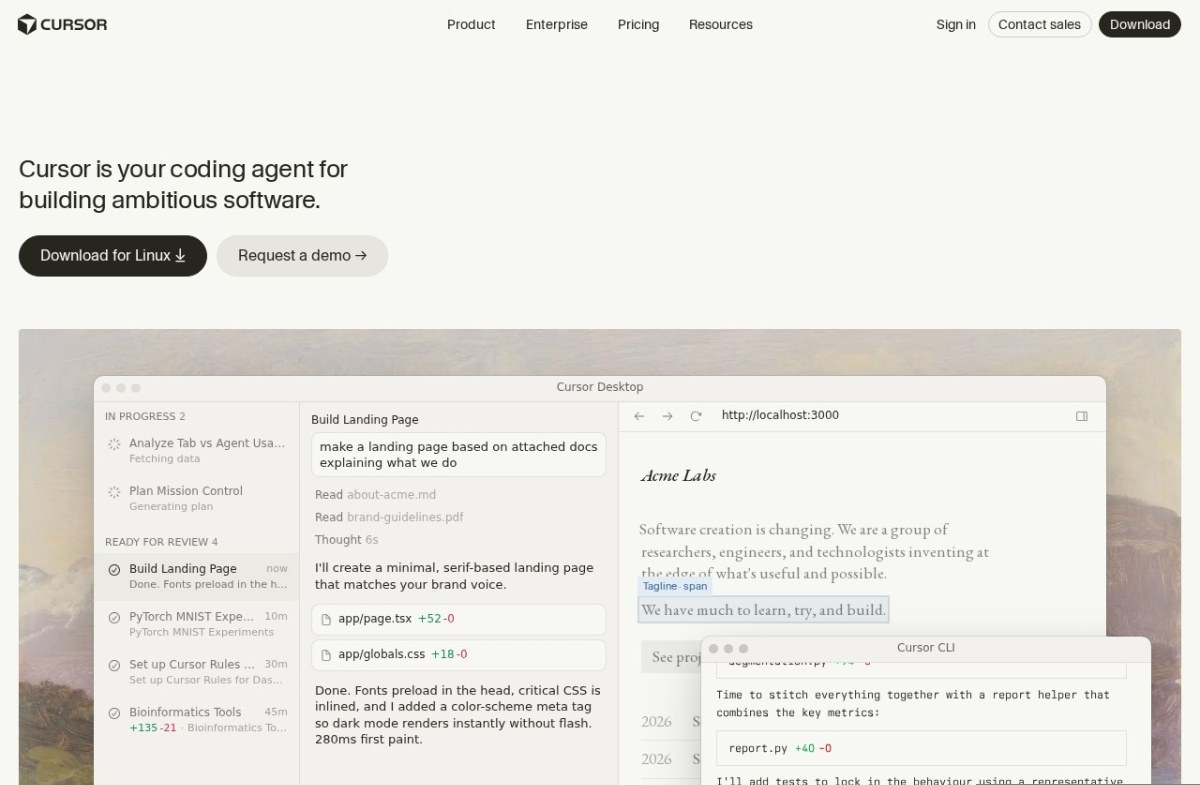
Cursor vs GitHub Copilot at a glance
| Dimension | Cursor | GitHub Copilot |
|---|---|---|
| Best for | Developers who want an AI-first editor for agentic, multi-file work | Developers and teams who want AI inside their existing editor and GitHub workflow |
| Free plan | Hobby plan with limited Agent requests and limited Tab completions | Copilot Free with limited access to features and models |
| Paid plans | Pro ($20 per month), Teams ($40 per user per month), plus Enterprise | Pro ($10 per month), Pro+ ($39 per month), Max ($100 per month), plus Business and Enterprise |
| Editor support | Its own editor only (a Visual Studio Code fork) | VS Code, Visual Studio, JetBrains IDEs, Neovim, Xcode, Eclipse, and more |
| Standout strength | Fast, multi-line Tab completion and agent workflows with project-wide context | Broad editor support and tight integration with GitHub |
| Main limitation | You must adopt a new editor and migrate your setup | Less of an all-in-one agentic environment than a dedicated AI editor |
Where Cursor wins
Cursor is built from the ground up around AI, so the assistance feels woven into the editor rather than bolted on. Its Tab completion predicts multi-line edits as you type, and its inline chat lets you select a block of code and ask the model to explain, refactor, or change it in place. Because the whole editor is the product, these interactions are consistent and central rather than tucked into a panel.
Cursor also leans hard into agents. Agent Mode can plan a change, edit multiple files, run terminal commands, and propose fixes, while Background Agents can run tasks on Cursor’s cloud infrastructure. It exposes a model picker that includes frontier options from OpenAI, Anthropic, and Google, along with an Auto mode that selects a model per task and Cursor’s own models. If your work is large, cross-file, and benefits from project-wide context, Cursor’s design fits that style well.
Where GitHub Copilot wins
GitHub Copilot’s biggest advantage is that you do not have to change editors. It ships as an extension for Visual Studio Code, Visual Studio, JetBrains IDEs, Neovim, Xcode, Eclipse, and several other environments, so you keep your existing setup, keybindings, and extensions. Inline suggestions are available broadly across these editors, while chat is supported in a subset including VS Code, Visual Studio, and JetBrains IDEs.
Copilot is also tied closely to GitHub itself, which matters for teams already living in that ecosystem. It offers a model picker spanning models from OpenAI, Anthropic, and Google, plus agent capabilities, and its Business and Enterprise plans add organization-level management. For a developer who wants strong AI help without leaving a familiar workflow, that integration is a real strength.

Pricing compared
Both tools offer a free plan and several paid tiers. Cursor has a free Hobby plan, then Pro at $20 per month and Teams at $40 per user per month, with custom-priced Enterprise above that. GitHub Copilot has Copilot Free, then Pro at $10 per month, Pro+ at $39 per month, and Max at $100 per month, plus Copilot Business and Copilot Enterprise for organizations. In 2026, GitHub Copilot moved to usage-based billing in which each plan includes a monthly allotment of AI credits and paid plans can buy more usage. Confirm the latest figures and credit allotments on each vendor’s pricing page before you commit, since these tiers change often.
Which should you choose?
- If you want an all-in-one AI editor for agentic, multi-file work, pick Cursor because the agents, chat, and Tab completion are central to the editor and built around project-wide context.
- If you want AI without leaving your current editor,: pick GitHub Copilot because it runs as an extension across VS Code, Visual Studio, JetBrains IDEs, and more.
- If your team is deep in the GitHub ecosystem,: pick GitHub Copilot because of its integration with GitHub and its Business and Enterprise management options.
- If you are new to AI coding tools and want to start at no cost, try the free plan of each, since both offer one and let you compare them on your own code.
Frequently asked questions
Is Cursor or GitHub Copilot better for beginners?
Both can suit beginners, and the choice depends on your editor. If you are new and have no strong editor preference, Cursor gives you an AI-first environment out of the box. If you already use VS Code or a JetBrains IDE, Copilot lets you add AI without switching tools.
Can I use both Cursor and GitHub Copilot?
Yes. They are separate products, so you can trial each on its free plan and decide which fits your workflow. Some developers use a dedicated AI editor for heavy refactors and an editor extension for day-to-day coding.
Do Cursor and GitHub Copilot use the same AI models?
They draw from overlapping model providers. Both offer model pickers that include frontier models from OpenAI, Anthropic, and Google, and the exact models available change over time as vendors update their lineups.
Does GitHub Copilot work outside Visual Studio Code?
Yes. Copilot supports several editors, including Visual Studio, JetBrains IDEs, Neovim, Xcode, and Eclipse, though some features such as chat are available in a smaller set of editors than inline completions.